

Key Takeaways
- A modem connects your home to your internet service provider (ISP); a router connects your devices to each other and to the modem.
- Without a modem, you have no internet signal entering the home; without a router, only one device can use that signal.
- Many ISPs rent a gateway device that combines both functions into one box, which simplifies setup but reduces flexibility.
- Owning your own modem can eliminate monthly equipment rental fees charged by ISPs.
- Problems with internet access often trace back to the modem; problems with Wi-Fi coverage usually trace back to the router.
Option A
Modem
The front door between your home and the internet.
Best for: Translating your ISP's signal into a format your home network can actually use.
Option B
Router
The traffic manager that connects every device in your home.
Best for: Distributing an internet connection to phones, laptops, smart TVs, and other devices — over Wi-Fi or ethernet.
If your internet drops completely across all devices
Modem
A full outage typically means the modem has lost its connection to the ISP. Rebooting or replacing the modem is the right starting point.
If Wi-Fi is slow or unreliable in certain rooms
Router
Coverage and speed issues within the home are almost always a router placement or router performance problem, not a modem issue.
If you want to reduce your monthly ISP equipment fees
Modem
Purchasing a compatible modem eliminates the ISP's rental charge; the router is a separate consideration based on your coverage needs.
If you want whole-home Wi-Fi coverage without complexity
Router
Upgrading or repositioning your router — or moving to a mesh system — addresses coverage gaps far more effectively than any modem change.
What a Modem Actually Does
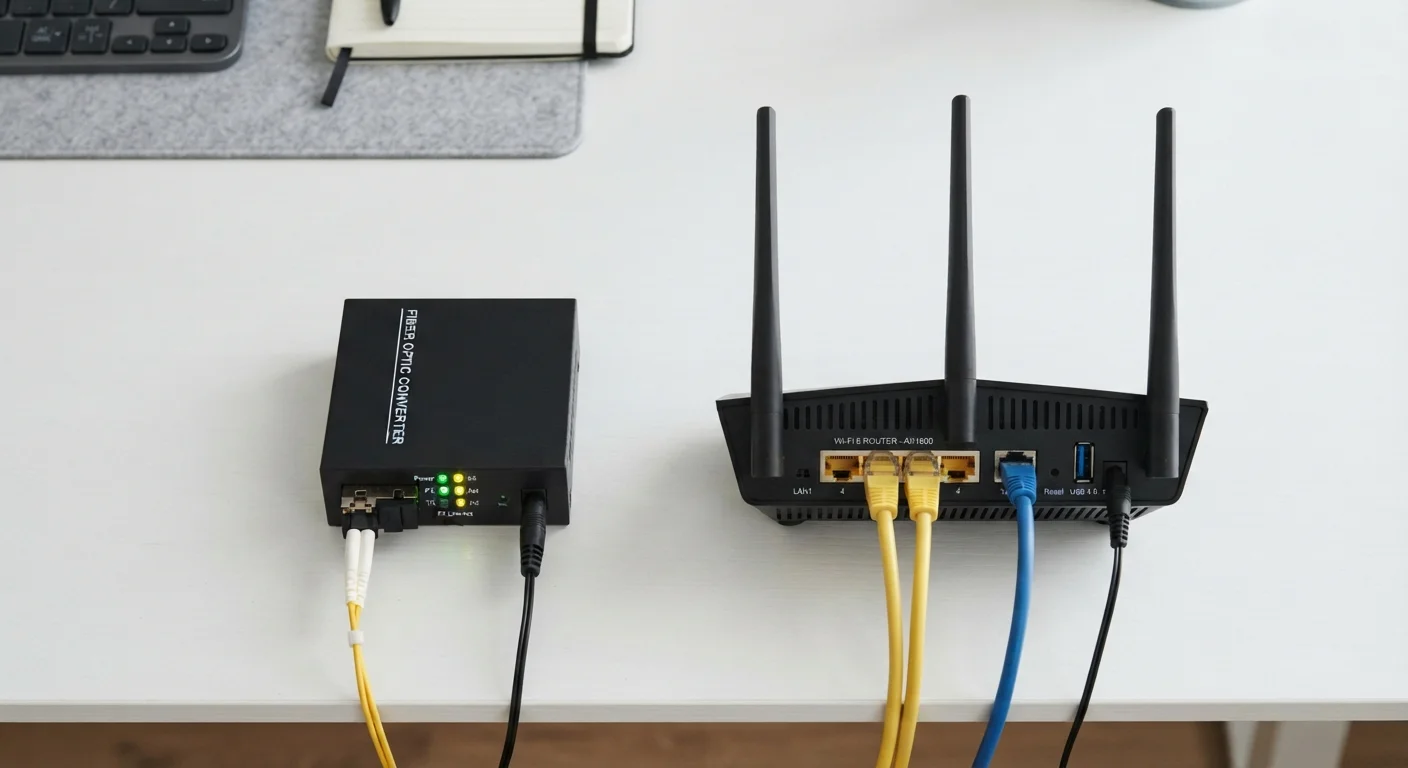
Your internet service arrives at your home through a physical medium — a coaxial cable, a phone line, or a fiber-optic line, depending on your connection type. (For a full breakdown of those differences, see our plain-English guide to home internet types.) The signal traveling on that line uses a format designed for long-distance transmission — it is not something a laptop or phone can read directly.
That is the modem's job. The word itself stands for modulator-demodulator, which describes the process of converting signals going in both directions. Incoming data from your ISP is demodulated into a digital format your home equipment understands; outgoing requests from your devices are modulated back into the format the ISP's network expects.
The modem has exactly two connections: one to the outside world (your ISP's line) and one to your home network (typically an ethernet port). It does not create a Wi-Fi network, and it does not manage multiple devices. Its only concern is maintaining that link to your provider.
~$10–15/mo
Typical ISP modem rental fee
Many major US internet providers charge a monthly equipment fee for renting their modem or gateway, which can add up to over $100 annually.
2.4 GHz & 5 GHz
Wi-Fi frequency bands most routers broadcast
Modern dual-band routers broadcast on both frequencies simultaneously; the modem has no role in which band a device connects to.
What a Router Actually Does
Once the modem has brought internet connectivity into your home, the router takes over. Its job is to distribute that single connection to every device that wants it — your phone, laptop, smart TV, gaming console, and smart home gadgets — simultaneously.
Routers do this by assigning each device a local IP address (a kind of internal mailing label) and managing the flow of data between them and the modem. This process is called NAT. The router also creates the Wi-Fi network — the signal name and password you connect to are controlled entirely by the router, not the modem.
Because routers handle everything inside your home network, they are also where features like parental controls, guest networks, device prioritization, and firewall settings live. For tips on getting the most from your router's placement, see our article on common router placement mistakes.
Side-by-Side: How They Compare
The table below cuts through the overlap and shows exactly where each device's responsibilities begin and end.
| Criterion | Modem | Router |
|---|---|---|
| Primary role | Connects home to ISP | Connects devices to each other and the modem |
| Creates Wi-Fi | No | Yes |
| Assigns device IP addresses | No | Yes (via DHCP) |
| Handles firewall / security | Minimal | Yes |
| Connects to ISP line | Yes (coax, phone, fiber) | No |
| Number of devices supported | Typically one (the router) | Many simultaneously |
| Location of parental controls | No | Yes |
| Rentable from ISP | Yes (common) | Sometimes, or purchased separately |
Bridge Mode: Using Your Own Router with an ISP Gateway
If your ISP provides a gateway but you want to use your own router, you can often enable 'bridge mode' on the gateway. This disables the gateway's routing functions and lets your router take over — avoiding the 'double NAT' problem that can interfere with gaming and certain apps. Check with your ISP for whether your gateway model supports this option.
The Gateway: When One Box Does Both
Many ISPs provide a single device called a gateway — a modem and router combined into one unit. Gateways simplify setup and reduce the number of cables and power adapters involved. For many households, especially those with straightforward needs, a gateway works perfectly well.
The trade-off is flexibility. When one component underperforms — say, the Wi-Fi signal is weak — you cannot upgrade just the router portion. You are locked into replacing or renting a new gateway from your ISP. By contrast, a separate modem and router setup lets you swap each device independently based on where the problem actually is.
If you are trying to make sense of terms like gateway, access point, or bridge mode, our home network glossary covers all of them without the jargon.
Diagnosing Problems: Which Box Is the Culprit?
One practical reason to understand the difference is troubleshooting. When something goes wrong with your internet, pinpointing the right device saves time.
- No internet on any device, including wired ones: The problem is likely the modem or the ISP's line. Check the modem's status lights and try rebooting it first.
- Wired devices work but Wi-Fi is slow or dropping: The router is almost certainly the issue. Check its placement — physical obstacles and distance significantly affect signal quality.
- Wi-Fi is fine in some rooms but not others: This is a router coverage problem, not a modem problem. Our article on mesh Wi-Fi vs a single router can help you decide if an upgrade makes sense.
- Speeds are consistently lower than your plan promises: This could be either device, or neither — see our piece on common myths about internet speed before assuming the hardware is at fault.