

Key Takeaways
- Radio waves lose strength every time they pass through a wall, floor, or large object.
- Building materials vary widely in how much signal they block — concrete and metal are the worst offenders.
- The 5 GHz band delivers faster speeds but penetrates walls less effectively than 2.4 GHz.
- Interference from neighboring networks and household devices compounds signal loss.
- Router placement is the single most impactful change most households can make.
- Severe range problems may call for a mesh system rather than a more powerful single router.
Wi-Fi Signal Attenuation
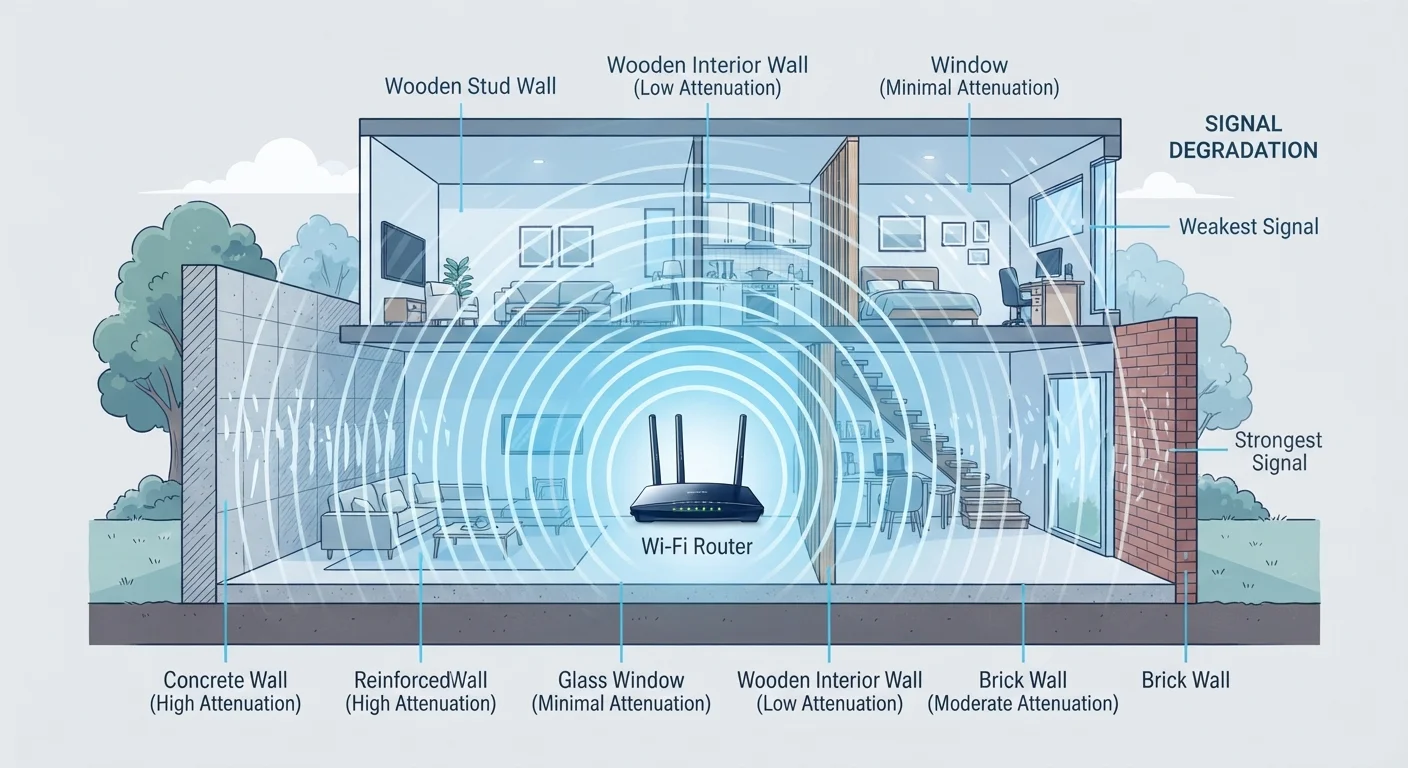
Wi-Fi signal attenuation is the loss of wireless signal strength as radio waves travel through space and physical barriers like walls, floors, and furniture. Every material a signal passes through absorbs or reflects some of its energy, reducing the effective range and speed of your connection. The further a device is from the router — and the more obstacles in between — the weaker the signal it receives.
Attenuation is measured in decibels (dB). A 3 dB loss cuts signal power roughly in half; a 10 dB loss reduces it to about one-tenth of its original strength.
Why Walls Hurt Your Wi-Fi
Wi-Fi relies on radio waves — specifically, microwave-frequency electromagnetic radiation — to carry data between your router and your devices. Like all electromagnetic waves, these signals weaken as they spread out from their source, a phenomenon called free-space path loss. But distance alone isn't the full story. Every material a signal encounters either absorbs some of its energy, reflects it in a new direction, or scatters it unpredictably.
The result is that a wall doesn't just block your signal — it taxes it. A single layer of drywall might cost only a few decibels of signal strength. A poured concrete wall can cost 15–20 dB or more — enough to reduce a strong signal to a marginal one. Stack several obstacles between your router and your laptop, and you may find the signal reaching your device is a fraction of what left the antenna.
Signal Strength vs. Signal Quality
Your device's Wi-Fi indicator shows signal strength, not signal quality. A connection can display three or four bars while still delivering poor throughput if the channel is congested with interference. If your speeds feel slow despite good signal bars, interference from neighboring networks or household devices may be the culprit rather than distance or wall attenuation.
This is why moving your router even a few feet — or switching which room it lives in — can produce a noticeable improvement. The fewer walls and floors a signal has to cross, the more energy arrives at your device.
The Material Problem: What Blocks Wi-Fi Most
Not all walls are equal. The construction of your home plays a large role in how far your Wi-Fi signal realistically travels.
- Metal: The biggest obstacle. Metal reflects radio waves rather than absorbing them, which can create unpredictable dead zones and multipath interference. Metal studs in drywall, reinforced concrete, and appliances like refrigerators all cause problems.
- Concrete and brick: Dense, thick, and highly absorptive. Older homes with solid masonry walls are particularly challenging environments for Wi-Fi.
- Plaster (especially with metal lath): A common feature in pre-1950s American homes; the metal mesh behind old plaster acts like a partial Faraday cage.
- Standard drywall and wood: Relatively signal-friendly. Interior partition walls in most modern US homes cause manageable attenuation.
- Glass: Mostly transparent to Wi-Fi, though large mirrors — which have a metallic coating — are more disruptive than plain windows.
~15–20 dB
Signal loss through a concrete wall
This represents the approximate attenuation a Wi-Fi signal experiences passing through a single layer of poured concrete, enough to reduce a strong signal to a weak one.
3 dB
Loss that halves signal power
In radio physics, every 3 dB of attenuation cuts the signal's power by approximately half, making even small material losses add up quickly across multiple walls.
2–3 dB
Typical signal loss through drywall
Standard interior drywall is among the most Wi-Fi-friendly building materials, causing only minor signal degradation compared to masonry or metal-bearing construction.
Frequency Bands: Speed vs. Range
Modern routers broadcast on two or three frequency bands: 2.4 GHz, 5 GHz, and, in newer Wi-Fi 6E and Wi-Fi 7 routers, 6 GHz. Understanding what each band does is one of the most practical things you can learn about your home network.
The physics is straightforward: lower-frequency waves carry less data per second but lose energy more slowly as they travel and pass through materials. Higher-frequency waves can carry far more data but attenuate more quickly — both over distance and through solid objects.
| Band | Typical Range | Wall Penetration | Max Speed Potential |
|---|---|---|---|
| 2.4 GHz | Longer | Better | Lower |
| 5 GHz | Medium | Moderate | Higher |
| 6 GHz | Shorter | Weakest | Highest |
If your device is struggling to maintain a connection in a distant room, manually connecting it to the 2.4 GHz network (rather than letting the router auto-select) is often a quick improvement. For devices in the same room as your router — streaming boxes, gaming consoles — 5 GHz or 6 GHz will typically deliver better performance. For more on how Wi-Fi compares to other wireless standards, see how Bluetooth, Wi-Fi, and NFC each fill different roles.
Interference: The Invisible Competitor
Even in a perfectly constructed home, your Wi-Fi signal competes with other radio sources. The 2.4 GHz band is particularly crowded because it's shared with microwave ovens, baby monitors, cordless phones, and Bluetooth devices. Neighboring Wi-Fi networks add to the congestion.
This type of interference doesn't block your signal the way a wall does — it introduces noise that forces your router and device to re-transmit data packets, reducing effective throughput even when your signal strength looks fine on screen. It's one reason a network can show full bars but still feel sluggish. For more on evening-specific slowdowns that can look like interference, why your Wi-Fi slows at night explains what's actually happening on your ISP's network.
Check Your Router's Channel Settings
If you're in an apartment building or dense neighborhood, log into your router's admin panel and look at the channel selection. Many routers default to auto-selection, which is usually fine, but some older models lock to a heavily used channel. Switching your 2.4 GHz network to channel 1, 6, or 11 — the only non-overlapping channels in that band — can reduce interference from neighbors.
Practical Implications for Your Home
Understanding the physics leads directly to actionable changes. Router placement is the highest-leverage move available to most households. A router tucked in a corner, on the floor, behind a television, or inside a cabinet is working against itself before a single packet leaves the antenna. Central placement, elevated off the floor, and away from appliances gives the signal the best geometry to cover your space.
If placement improvements aren't enough — common in multi-story homes, homes with masonry construction, or layouts with many partitions — a mesh Wi-Fi system distributes the signal across multiple nodes rather than asking one router to punch through every obstacle. This approach sidesteps attenuation rather than fighting it.
For devices that can't tolerate any wireless variability — a desktop computer used for video calls, a home server, a streaming device in a fixed location — a wired Ethernet connection eliminates the attenuation problem entirely. It's not always convenient, but it's the most reliable option available.
Your home's Wi-Fi performance is ultimately a product of physics, construction, and placement. Understanding why signals weaken makes the solutions feel less arbitrary — and helps you make smarter decisions about your network without guesswork.