

| Primary purpose of RAM | Running active programs and tasks |
| Primary purpose of SSD | Long-term file and app storage |
| RAM is volatile? | Yes — data clears on shutdown |
| Typical RAM range (smartphones) | 4 GB to 16 GB (General industry range as of 2024) |
| Typical SSD range (laptops) | 256 GB to 2 TB (General consumer market range as of 2024) |
| Cloud storage requires | An active internet connection |
| ROM is user-editable? | Generally no |
Why Storage Terminology Feels Confusing
When you look at a device's specs — whether for a laptop, smartphone, or tablet — you'll typically see numbers like "8 GB RAM" and "512 GB SSD" listed side by side. Both involve storing data, so it's natural to wonder why they're listed separately and what each one actually does for you.
The short answer: different types of storage serve completely different purposes. Some handle what you're doing right now; others hold everything you've saved over time. Understanding that distinction is the foundation for decoding any device spec sheet.
Storage and Memory Are Not the Same Thing
In everyday conversation, people often use 'memory' and 'storage' interchangeably — but technically they refer to different things. Memory (RAM) is temporary and used for active tasks; storage (SSD, HDD, cloud) is where data lives long-term. Knowing the difference helps when comparing device specs or diagnosing performance issues.
RAM: Your Device's Working Space
RAM (Random Access Memory) is best understood as your device's active workspace. When you open a browser tab, stream a video, or edit a document, that data is temporarily loaded into RAM so your processor can access it instantly without waiting. The more RAM a device has, the more tasks it can juggle simultaneously without slowing down.
RAM is volatile — meaning it is wiped completely every time your device powers off. It plays no role in storing your photos, documents, or apps permanently. If a device feels sluggish when you switch between apps, limited RAM is often a contributing factor.
| Primary purpose of RAM | Running active programs and tasks |
| Primary purpose of SSD | Long-term file and app storage |
| RAM is volatile? | Yes — data clears on shutdown |
| Typical RAM range (smartphones) | 4 GB to 16 GB (General industry range as of 2024) |
| Typical SSD range (laptops) | 256 GB to 2 TB (General consumer market range as of 2024) |
| Cloud storage requires | An active internet connection |
| ROM is user-editable? | Generally no |
ROM, SSD, and Long-Term Storage
ROM (Read-Only Memory) is a small, fixed type of memory that holds the basic instructions your device needs just to power on and function — called firmware. Users don't interact with ROM directly, and it's rarely relevant when comparing consumer device specs.
SSDs (Solid-State Drives) are what most people actually mean when they say a device has a lot of storage. Your operating system, apps, photos, music, and files all live on the SSD. Unlike older HDDs, SSDs use flash memory chips with no moving parts, making them faster, quieter, and more resistant to physical damage from drops.
When a device spec says "256 GB" or "1 TB," that figure refers to SSD (or equivalent flash) storage — not RAM. A larger SSD means more room for files and apps, but it won't by itself make your device run faster day to day.
RAM (Random Access Memory)
Short-term working memory that a device uses while actively running programs. When you close an app or shut down your computer, RAM is wiped clean and resets.
ROM (Read-Only Memory)
Permanent memory embedded in a device's hardware that stores firmware — the foundational instructions a device needs to start up. It cannot normally be changed by the user.
SSD (Solid-State Drive)
A long-term storage device that saves files, apps, and the operating system using flash memory chips. It has no moving parts, making it faster and more durable than older hard disk drives (HDDs).
Cloud Storage
Files and data stored on remote servers maintained by a third-party provider and accessed over the internet. Your files are not saved physically on your device.
HDD (Hard Disk Drive)
An older type of long-term storage that uses spinning magnetic platters to read and write data. Generally slower than SSDs but available in larger capacities at lower cost.
Firmware
Low-level software permanently stored in ROM that controls basic hardware functions, such as how a device powers on and communicates with its components.
Volatile Memory
Any memory that loses its data when power is removed. RAM is the most common example in consumer devices.
Non-Volatile Memory
Memory that retains data even without power. SSDs, ROM, and flash drives are all non-volatile storage types.
Cloud Storage: Files That Live Off Your Device
Cloud storage moves the question of physical space off your device entirely. Services that offer cloud storage save your files on remote servers maintained by the provider. You access them over the internet rather than from a local drive.
The practical advantage is that your files are reachable from any device with an internet connection and aren't lost if your phone breaks. The trade-off: you need a connection to access them, and you're dependent on the service remaining available. Most cloud providers offer a limited amount of free space, with additional capacity available through paid plans.
For a closer look at how to decide between keeping files locally versus in the cloud, see our guide to cloud vs. local storage.
Putting It All Together
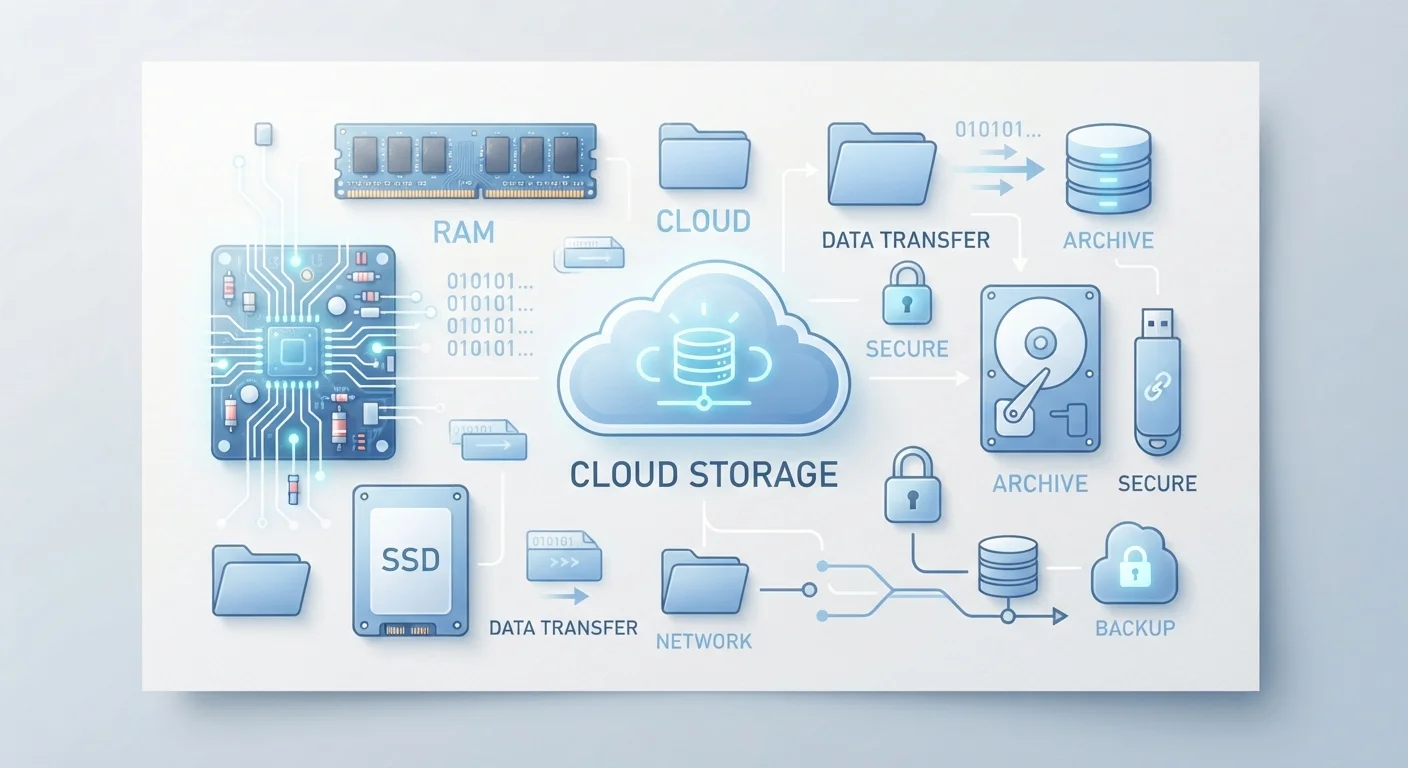
Every device you use combines these storage types in different ways. A smartphone might have 8 GB of RAM for multitasking, 256 GB of internal SSD-style flash storage for your apps and files, a small ROM chip handling startup routines, and a cloud account backing up your photos automatically.
None of these is a substitute for another. More RAM won't give you more space for files. A larger SSD won't help your device run more apps at once. And cloud storage can't replace local storage if you're somewhere without an internet connection.
The clearest takeaway: when you're evaluating a device, check RAM for performance and SSD capacity for how much you can save on it — they answer different questions entirely.