

Key Takeaways
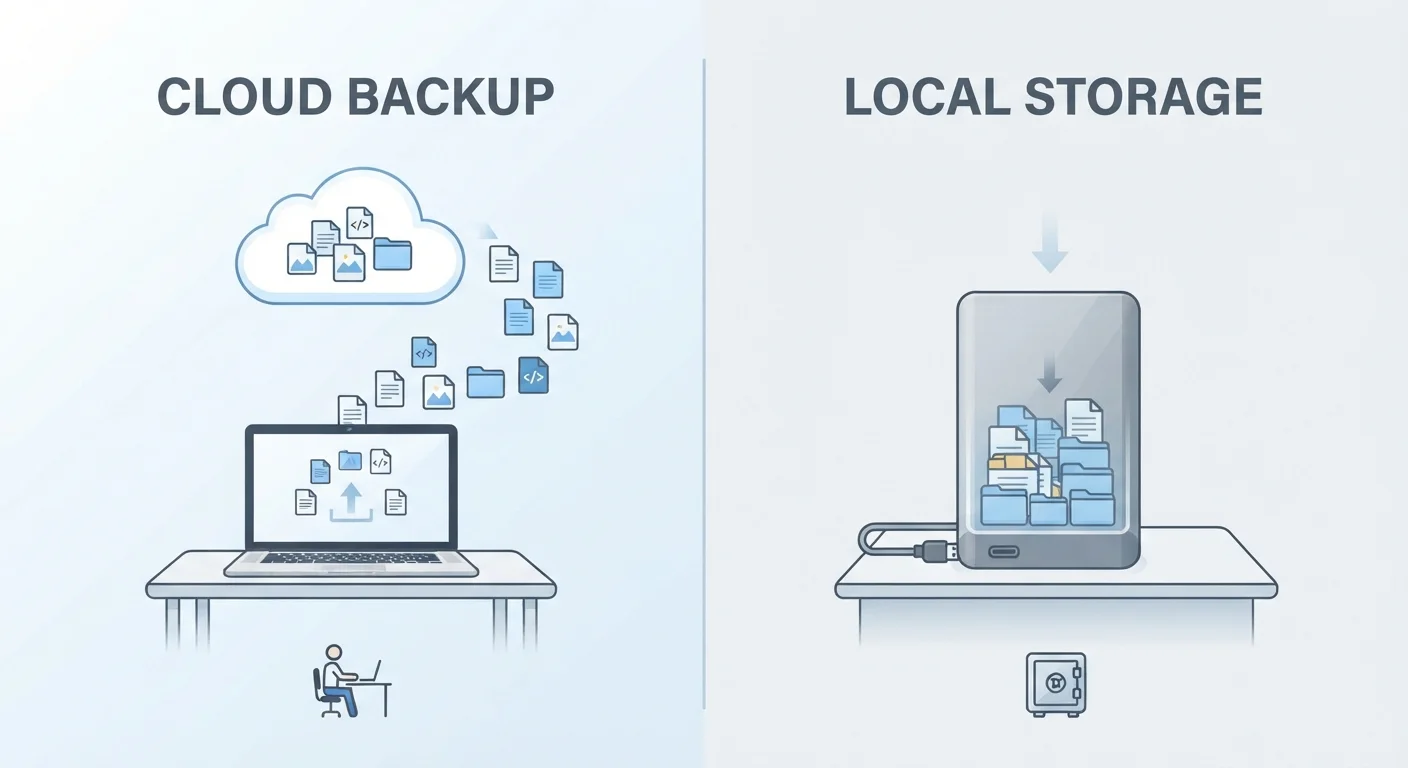
- Cloud storage saves your files on remote servers maintained by a third-party provider.
- Local storage keeps files on physical hardware you own, like a hard drive or SSD.
- Cloud storage requires internet access; local storage works entirely offline.
- Neither option alone is a complete data protection strategy — most experts recommend both.
- Privacy, cost, and access needs should all factor into your storage decision.
Option A
Cloud Storage
Files stored on remote servers you access over the internet.
Best for: People who work across multiple devices or need to share files easily with others.
Option B
Local Storage
Files saved directly onto your device or an attached drive.
Best for: People who want full control, fast access, and no reliance on an internet connection.
If you use multiple devices and need files everywhere
Cloud Storage
Cloud storage automatically makes your files available on any device with internet access, eliminating the need to transfer files manually.
If you work with large files or in areas with unreliable internet
Local Storage
Local storage offers fast, consistent access with no bandwidth limits or connectivity requirements, which matters for video editing or remote work.
If privacy and data control are your top priorities
Local Storage
Files kept on your own hardware aren't subject to third-party terms of service, server breaches, or provider policy changes.
If you want protection against device theft or hardware failure
Cloud Storage
Since files exist on remote servers, losing or breaking your device doesn't mean losing your data — it's accessible from another device immediately.
If you want the most resilient long-term data protection
Both
Using cloud and local storage together — often called the 3-2-1 backup strategy — protects against the failure modes that neither option can handle alone.
What Cloud Storage Actually Means
When you save a document to Google Drive, Dropbox, or iCloud, that file doesn't stay on your computer. It travels over the internet to a data center — a large facility full of servers — owned or leased by the service provider. Your device keeps a local copy in many cases, but the authoritative, synced version lives on those remote machines.
This is what "the cloud" means in practical terms: someone else's computers, somewhere else, storing your data on your behalf. You access those files through an app or a web browser, and the provider handles the hardware, maintenance, and security of the servers themselves.
Cloud storage shines when you switch between devices frequently. Open a file on your work laptop, close it, and it's right there when you pick up your phone or tablet. It also makes sharing straightforward — instead of emailing attachments, you share a link. For household document management, this pairs naturally with going fully digital with your filing system.
When Cloud Apps Store Files Locally Too
Many cloud services — including Google Drive and Dropbox — offer an option to keep files available offline by storing a copy on your device. This blurs the line between cloud and local storage. When your internet connection drops, you can still open and edit those files; changes sync back to the cloud when you reconnect. Check your app's settings to understand what's stored where, especially if device storage space is limited.
What Local Storage Actually Means
Local storage refers to any physical hardware directly attached to — or built into — your device. This includes the internal solid-state drive (SSD) or hard disk drive (HDD) inside your computer, an external USB hard drive, a thumb drive, or even a memory card. The file exists as magnetic or electronic data on that physical medium, and reading it doesn't require an internet connection.
The key distinction: you own and control the hardware. No subscription, no third-party terms of service, no server outage can prevent you from opening your files — as long as the hardware is working. That physical control also means a failed drive, theft, or a house fire can wipe out everything with no recovery path unless you've made copies elsewhere.
| Criterion | Cloud Storage | Local Storage |
|---|---|---|
| Where files are kept | Remote servers (data centers) | Physical hardware you own |
| Internet required | Yes, to access or sync | No |
| Access across devices | Automatic and seamless | Manual transfer needed |
| Ongoing cost | Subscription (after free tier) | One-time hardware purchase |
| Risk if hardware fails | Files remain on servers | Data may be unrecoverable |
| Privacy and data control | Subject to provider's terms | Fully under your control |
| Transfer speed | Limited by internet speed | Very fast (direct connection) |
Speed is another local storage advantage. Transferring large video files or accessing a database runs dramatically faster against a local drive than over a typical home internet connection. That gap narrows with faster broadband but rarely disappears entirely.
The Real Trade-Offs Worth Knowing
Both storage types have meaningful limitations that marketing materials tend to gloss over.
Cloud storage concerns: Your files are only as accessible as your internet connection. Providers can — and do — change their pricing, storage limits, or terms of service. In some jurisdictions, cloud providers may be compelled by law to provide access to your data. And if a provider shuts down, your files could be at risk without warning.
Local storage concerns: Hardware fails. Drives have a finite lifespan, and failure can be sudden and total. A stolen laptop or a flooded home office can mean permanent data loss. Local storage also doesn't automatically sync changes across devices — you have to manage that manually.
~20%
Annual hard drive failure rate by year 4
Long-term drive reliability studies, including data published by cloud storage provider Backblaze, suggest mechanical hard drives show meaningful failure rate increases after three to four years of operation.
3-2-1
Copies recommended by data protection best practice
The 3-2-1 rule — three copies, two different media types, one off-site — is a widely cited data protection guideline promoted by organizations including the US-CERT.
It's worth understanding how these two approaches relate to backups and syncing, which are different concepts entirely. Our guide on the difference between syncing and backing up explains why a synced cloud folder isn't the same as a true backup — an important distinction most people miss.
How Most People Should Actually Use Both
Treating cloud and local storage as competing options misses the point. Most data protection guidance — including the widely referenced "3-2-1" principle — recommends keeping at least three copies of important files: two on different local media, and one stored off-site (which cloud storage handles well).
A practical setup for most households: use cloud storage for active files you need across devices and for automatic off-site protection, while maintaining a local external drive as a full backup of your most important data. This way, a provider outage doesn't strand you, and a hardware failure doesn't mean permanent loss.
If you're thinking about how to organize your files before deciding where to store them, the principles aren't that different from physical organization. The same logic behind smart home organization strategies — logical categories, consistent naming, regular purges — applies directly to digital file management.
The storage method you choose matters less than the habit of actually protecting your files. Start with whichever option you'll use consistently, then layer in the other as your needs grow.