

Key Takeaways
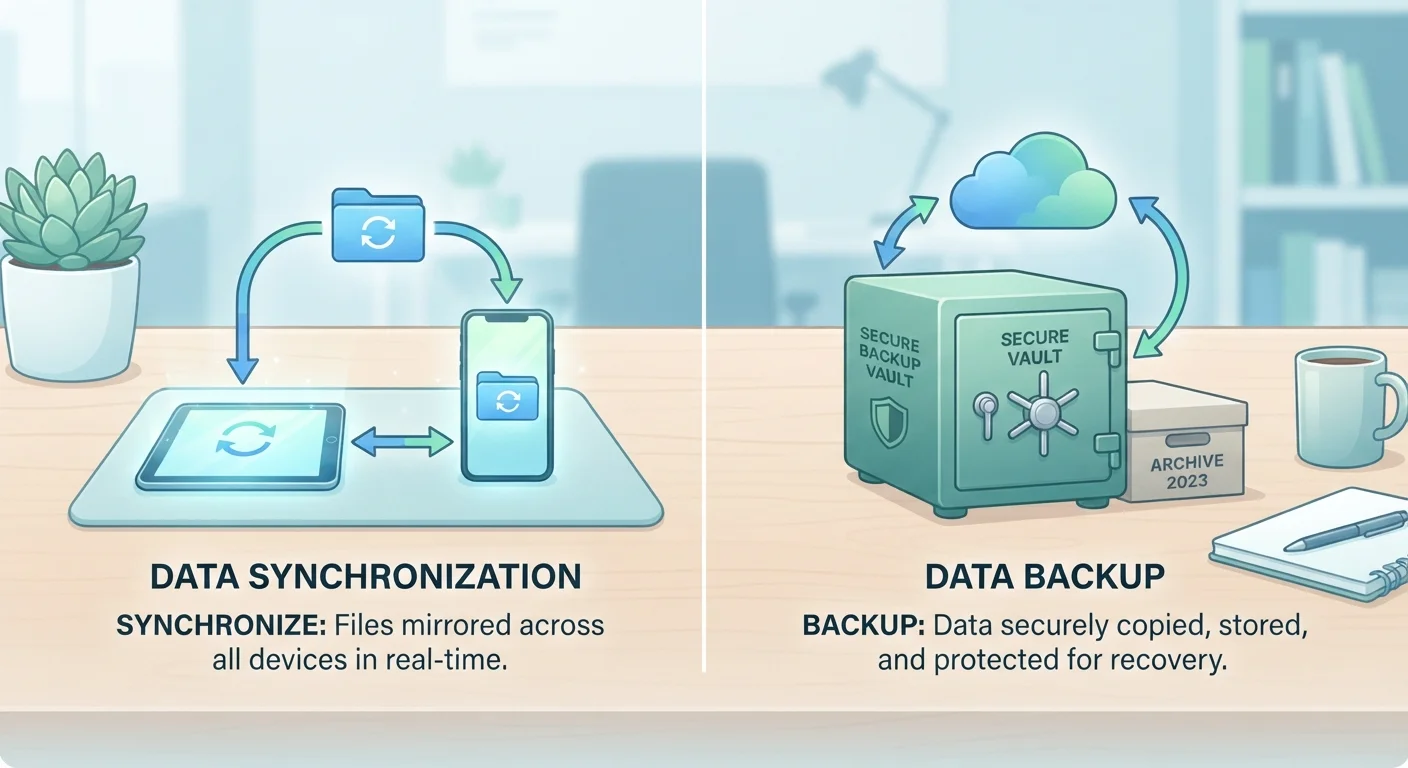
- Syncing keeps files consistent across your devices — a change in one place appears everywhere.
- Backing up creates a separate safety copy that protects you if files are deleted or corrupted.
- Syncing alone does not protect you from data loss — deleted files sync as deleted.
- A backup preserves a snapshot of your data at a specific point in time.
- Most people need both syncing and backups working together for full data protection.
Syncing vs. Backing Up
Syncing means keeping files identical and up-to-date across multiple devices or locations — when you change something in one place, it changes everywhere. Backing up means making a separate, protected copy of your files so you can restore them if something goes wrong. They sound similar but serve completely different purposes.
Sync operates on a mirroring model — deletions and edits propagate in real time. A backup is a point-in-time snapshot that remains independent of the original, meaning accidental deletions do not immediately overwrite it.
What Syncing Actually Does
When an app or service syncs your files, it keeps them identical across every connected device. Edit a document on your laptop, and within seconds it appears updated on your tablet and phone. Delete a photo from one device, and it disappears from all of them.
This is enormously convenient for everyday use — you never have to email files to yourself or wonder which version of a document is the most current. Services that work this way include common cloud storage platforms and note-taking apps.
But here's the catch: sync mirrors everything, including mistakes. If you accidentally delete a folder or a file becomes corrupted, that change propagates to every device connected to your account. Sync has no memory of what things looked like yesterday — it only knows what's current right now.
For a deeper look at where synced files actually live, see our guide to cloud storage vs. local storage.
Check What Your Cloud Service Actually Does
Before assuming a service backs up your files, look into whether it syncs or archives. Many popular cloud platforms sync your current file state — meaning deletions travel with them. Look for services that explicitly offer version history or point-in-time restore if you want genuine backup protection.
What Backing Up Actually Does
A backup is a separate, independent copy of your data taken at a specific point in time. Unlike sync, a backup doesn't update in real time — it captures a snapshot that stays frozen until you run the next backup.
This separation is what makes backups genuinely protective. If you accidentally delete a folder on Tuesday, your Monday backup still has it intact. If ransomware encrypts your files, a backup stored offline or on a separate account is untouched.
Backups can live on an external hard drive, a dedicated cloud backup service, or both. The widely cited 3-2-1 rule — three copies of your data, on two different media types, with one stored offsite — is a useful mental model for thinking about how thorough your backup approach is.
21%
Adults who have never backed up their data
According to a Backblaze survey, a significant share of users rely on sync or cloud storage alone without maintaining a true backup.
30%
Users who lose data each year
Industry estimates suggest roughly 1 in 3 people experience some form of data loss annually, often from accidental deletion, hardware failure, or malware.
Why You Usually Need Both
Syncing and backing up solve different problems, which is why relying on just one leaves a gap.
- Sync alone gives you convenience and access, but no protection against accidental deletion or corruption.
- Backups alone give you recovery options, but don't make your files available across devices in real time.
Think of it this way: sync is like keeping your keys in the same spot every day so you always know where they are. A backup is like having a spare set stored somewhere safe in case you lose the originals.
The good news is that setting up both doesn't have to be complicated. Many operating systems include built-in backup tools that run automatically in the background, while sync services run continuously once configured.
Common Misconceptions Worth Clearing Up
A few persistent myths make this topic more confusing than it needs to be:
- "My files are in the cloud, so they're backed up."
- Not necessarily. If you're using a sync service, the cloud is just another synced location — not a protected backup. Deletions and errors still propagate there.
- "I have copies on two devices, so I'm covered."
- Two synced devices are still just one dataset in two mirrors. If the data is corrupted or deleted, both copies reflect that immediately.
- "Backups are only for businesses or IT people."
- Everyone who stores photos, documents, or any file they'd be unhappy to lose benefits from a backup. Modern backup tools are designed for everyday users, not just technical professionals.
Version History Is a Middle Ground
Some sync services offer version history — the ability to restore a file to how it looked hours or days ago. This adds a layer of recovery that pure sync doesn't have, but it isn't the same as a full backup. Version history is typically limited in how far back it can go and may not cover all file types or folder structures.
Understanding these distinctions puts you in a much stronger position when it comes to protecting the things that matter — whether that's years of family photos or important work files.