

Key Takeaways
- Most phones and computers offer built-in tools to separate work and personal app environments.
- Using separate browser profiles is one of the simplest ways to divide work and personal accounts.
- Work device management software can access data on a work profile — know where the boundary sits.
- Notifications and app permissions are key to maintaining focus and protecting personal privacy.
- You don't need two devices to keep work and personal life meaningfully separate.
What you will need
Why Mixing Work and Personal Apps Causes Real Problems
Using one device for everything is normal — buying two phones or maintaining two laptops is neither practical nor cheap. But when work and personal apps share the same space without any structure, a few predictable problems emerge.
The most common is notification overload: Slack pings during dinner, personal texts during a work call. A close second is accidental data mixing — syncing a personal photo to a work cloud drive, or logging into a personal account through a work browser session that your employer can monitor. A third problem is subtler: cognitive overload. When every app on your home screen represents both a personal and professional commitment, it becomes harder to mentally shift into either mode fully.
None of these problems require two devices to fix. They require a small amount of intentional structure — which is exactly what the steps below provide.
What you will need
What Tools and Setup You'll Need
The good news is that the core tools are already built into your device. You don't need third-party apps or paid services to achieve meaningful separation. Here's what you'll be working with:
Work Profile (Android)
Creates a sandboxed environment on Android devices where work apps and data are kept separate from personal apps.
Separate Browser Profiles
Most modern browsers support multiple profiles, letting you keep work logins, bookmarks, and extensions completely isolated from personal browsing.
Focus / Do Not Disturb Mode
Silences notifications from selected apps based on time of day or context, reducing cross-contamination of work and personal attention.
Screen Time or Digital Wellbeing
Built-in tools on iOS and Android that can restrict app usage by category or time, helping reinforce the boundary between work and personal use.
For anyone using a shared cloud storage service, also revisit the difference between syncing and backing up — it's easy to have work files in a personal backup or vice versa without realizing it.
Step-by-Step: Separating Your Apps
Work through these steps in order. Each builds on the previous one, so completing the audit in Step 1 makes every subsequent decision faster.
Your Employer May Have Visibility Into Work Profiles
If your device is enrolled in a corporate mobile device management (MDM) system, your employer may be able to see app usage, access work-profile data, or remotely wipe the work side of the device. This generally does not extend to a personal profile, but the exact boundary depends on your organization's MDM policy. Review your employer's device-use policy before storing sensitive personal information anywhere on a work-managed device.
Audit what you currently have installed
Before reorganizing anything, take stock of every app on your device and assign each one a category: work-only, personal-only, or shared. Common shared apps include calendars, note-taking tools, and messaging apps where both contexts bleed together.
Write the list down or screenshot your home screen. This audit makes the next steps much more deliberate — you'll know exactly what needs separating. Check our guide to app permissions while you're at it, since cross-context apps often have broader access than you'd expect.
Set up a Work Profile (Android) or use Managed Apple ID separation (iPhone/Mac)
On Android, a Work Profile creates a completely separate space for work apps. Apps inside it can't see data from your personal apps, and vice versa. You'll find this option under Settings > Accounts > Work Profile on most Android devices, though the exact path varies by manufacturer. Work apps appear with a small briefcase icon to distinguish them.
On iPhone and Mac, the separation is less built-in unless your employer has enrolled your device in Apple Business Manager and assigned a Managed Apple ID. In that case, work apps and accounts are already partitioned. Without MDM enrollment, iPhone users rely more on per-app account separation described in the next steps.
Create separate browser profiles for work and personal use
This is one of the highest-impact, lowest-effort changes you can make regardless of device. Browsers like Chrome, Firefox, Edge, and Safari all support multiple user profiles. Each profile maintains its own cookies, saved passwords, extensions, and browsing history.
Create one profile for work (sign in with your work email) and one for personal use. Bookmark work tools in the work profile only. This prevents you from accidentally accessing personal accounts on work systems — or forwarding a personal search history into a work browser session.
Separate your email and calendar accounts within apps
Many email and calendar apps let you add multiple accounts but display them in a merged view by default. While a unified inbox can be convenient, it's also where work and personal notifications blend together and become harder to manage.
Consider using separate apps for each context — your device's default mail app for personal email, and your employer's preferred client (such as Outlook or Gmail in a work browser profile) for work. If you prefer a single app, at minimum color-code the calendars and disable badge notifications for the account you're not currently focused on.
Organize your home screen or desktop by context
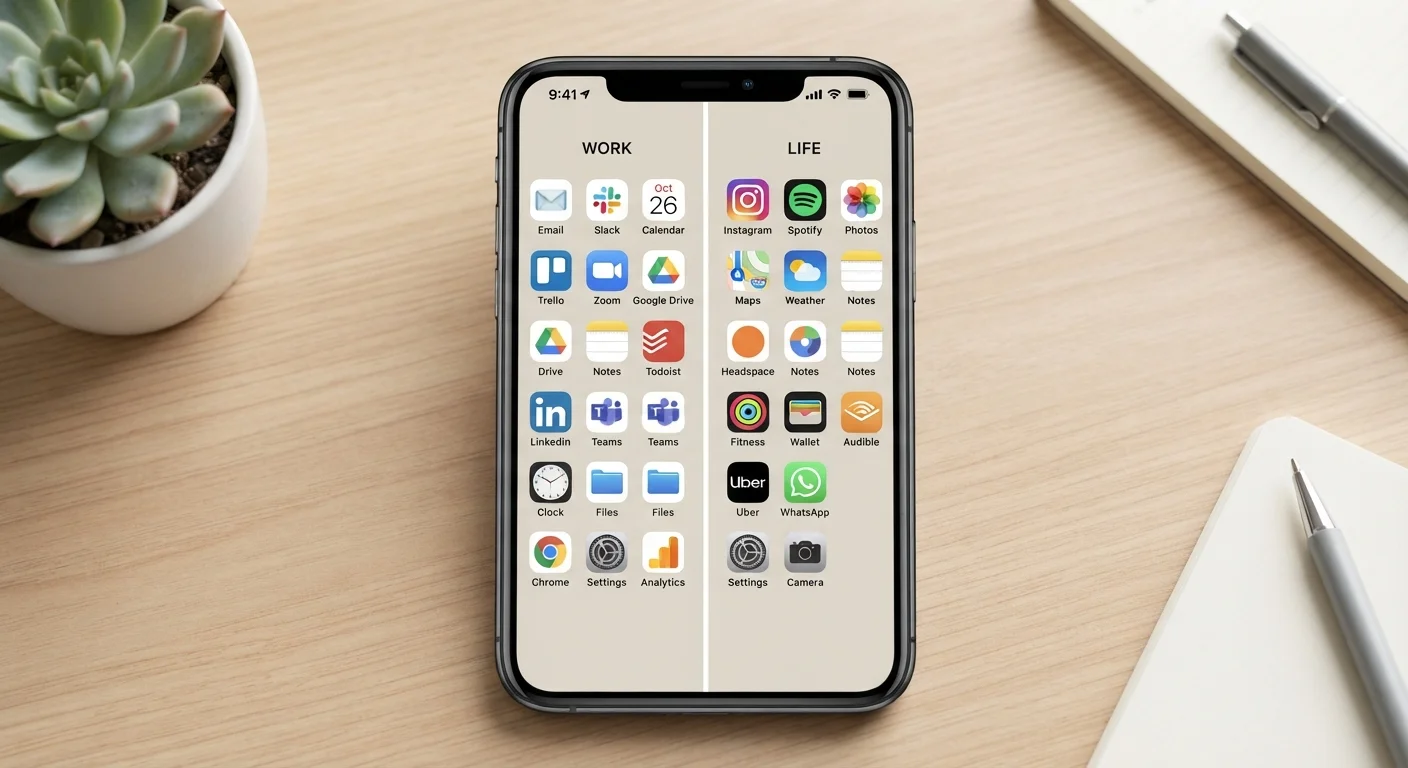
Physical (visual) separation reinforces the mental boundary. On a phone, group work apps into a dedicated folder or put them on a secondary home screen page. On a computer, create separate desktops or virtual workspaces — both Windows and macOS support multiple virtual desktops — and keep work windows on one and personal windows on another.
The goal isn't aesthetic perfection; it's reducing the friction that leads to accidental context-switching. When you open your device for a personal reason, you shouldn't be staring at your project management tool. If you've been struggling with that boundary, this look at productivity app habits may be worth a read.
Review notification settings for each context
Notifications are the primary way work bleeds into personal time and vice versa. Go through each app's notification settings and decide: should this app be allowed to interrupt you at all times, or only during certain hours?
Most phones allow per-app notification scheduling. Enable work app notifications only during work hours, and mute them in the evening. Equally, mute personal app badges during your most focused work hours. The trade-offs of free apps article touches on how notification-heavy apps are often designed to maximize engagement — understanding that design intent helps you push back against it.
[tip_callout]Maintaining the Separation Over Time
Setup is the easy part. The harder part is maintenance. Apps update, new tools get added by your employer or your own habit, and the boundaries you set today will drift if you don't check them periodically.
A practical approach: every time you install a new app, immediately decide which context it belongs to and place it accordingly. If it belongs in both (a note-taking tool, for example), decide which account will be the default. Avoid the habit of using the same app instance for everything because it's slightly more convenient right now — that convenience compounds into confusion later.
Don't Mix Cloud Storage Accounts
Auto-upload features in cloud storage apps like photos or document sync can easily cross the work/personal line if you're signed in to both accounts in the same app. Double-check which account is set as the default upload destination, and consider using separate apps for each context if your platform allows it.
When you're ready to trim apps you no longer need, see the account and data checklist before deleting an app to make sure you don't lose access to anything important in the process.